DJI Avata 360, a work in progress
As I did with the Antigravity A1 footage analysis, I wanted to check out the footage quality of the DJI Avata 360. Thanks to a kind user online, we gained access to some DJI Avata 360 sample footage.
It is impossible not to compare the DJI Avata to the Antigravity A1, as it is not possible to avoid comparing the Insta360 X5 with the DJI Osmo 360. Just by the specs alone, it appears that DJI has the upper hand, offering 10-bit video and 60 fps. However, there is much more to compare than that. The aircraft design, firmware, mobile and desktop software, while looking similar, are quite different, and they show different perspectives on the market they appeal to.
From the start, the DJI Studio desktop app does not show the equirectangular view (or 360 view, as it is called in the Antigravity Studio app) in the editor, just while selecting a clip. In order to export a video to equirectangular format, you have to create a project, drag a single video into the timeline, set the D-Log M color recovery, set the perspective to Free View, press the export button, select “Panoramic Video,” and set your output options. Sadly, there is no ProRes and no GPX output options. You can also drag more than one clip in the timeline and then export them using the “Multiple Individual Clips” in the Export screen to export in batch, but I guess all clips have to have the same resolution and frame rate.
DJI also offers the DJI Reframe Plugin for Adobe Premiere, which is currently available only for Mac users. This means you need a Mac and an Adobe CC subscription. You can then import the .OSV files into Premiere, apply the DJI Avata 360 D-Log M to Rec.709 LUT, and export them in equirectangular format. However, there are no stitching options at all, and the stitching results are poor.
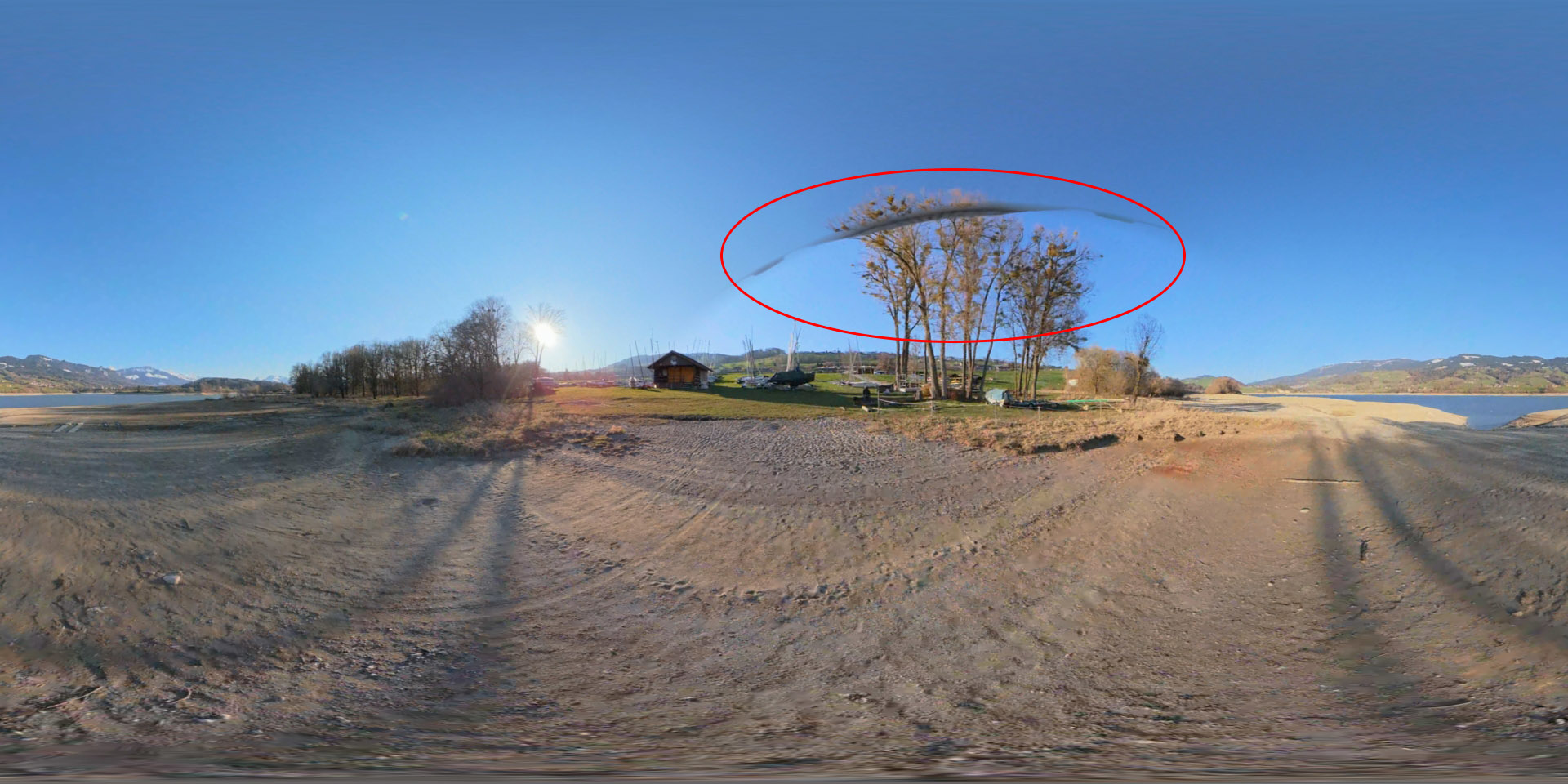
The stitching issues are also present in fast-moving shots, even when using the different stitching methods in the DJI Studio desktop app, as shown at the end of the video above.
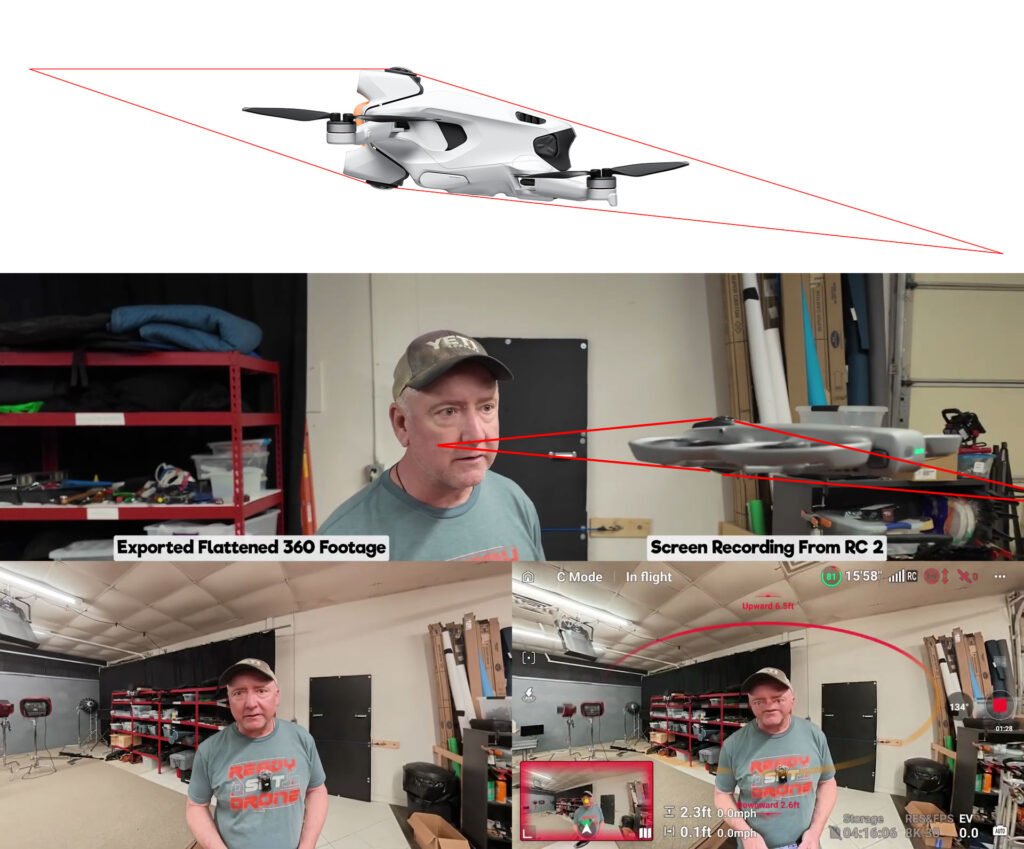
I guess the main issue is the aircraft design. Yes, DJI has a long history of making drones, but a 360 drone is a different thing. It is not about the distance between the two fisheye lenses, it is about the field of view each lens has and how to conceal the aircraft between those two lenses. That is likely why the DJI Avata 360 shows some stitching issues in the live view while the Antigravity A1 does not. Not to mention the orientation of the lenses, quite a clever design by Antigravity.
With the Antigravity Studio app, you can preview the video in equirectangular format (360 view) and export in that format using ProRes while also including the GPX file in the export. This makes the exported video ideal for Google Street View. You can choose H.264, H.265, ProRes 422 LT, and ProRes 422 as output codecs to preserve quality and edit in other apps. There is no comparison there, Antigravity is clearly ahead of DJI.
When it comes to aspect ratios, the DJI Studio desktop app disappoints. There is no 2.35:1 aspect ratio. I usually use this format because it takes advantage of the field of view provided by a 360 camera. In fact, even when I export in 16:9, I usually first select the angles of my keyframes using 2.35:1 to get a good overview of the field of view.
When it comes to reframing options, the DJI Studio desktop app offers Camera View, Free View, and Direction Lock, while the Antigravity Studio app offers Vision Goggles View, Free View, Front View, Rear, Left, Right, and Overhead View. Antigravity clearly offers more options. Both apps offer Subject Tracking, Motion Blur / Motion ND, Time-Shift / Speed Change, and Keyframes, but the Antigravity Studio app is ahead by offering an easier way to add keyframes with a right-click of the mouse and adaptive keyframes.
One of the main differences between the DJI Studio desktop app and the Antigravity Studio app is their overall approach. While the Antigravity Studio app is essentially a fork of the Insta360 Studio app, which evolved from simple stitching and reframing into a full video editor capable of handling multi-clip projects, transitions, effects, and more, the DJI Studio desktop app “took inspiration” from those apps but ignored the convenient single-clip quick-edit mode, choosing to offer only project mode.
This decision has some practical and annoying implications. If you want to check multiple clips and export them by adding one after another to a queue, you can’t. You have to wait for each export to finish, delete the clip from the timeline, add the next clip, and repeat the process. You’ll also lose any consistent filename convention, or you’ll have to create one project per clip, which is far too much hassle.
In conclusion
While the DJI Avata 360 offers 10-bit video and 60 fps, the stitching issues inherent to the drone design, the lack of stitching options and resulting artifacts in the DJI Reframe Plugin for Adobe Premiere, the lack of a Windows version of the plugin, and the limited features in the DJI Studio desktop app for quick batch exports, among other issues, make those impressive specs feel worthless.
I cannot recommend the DJI Avata 360 for 360 video creation or 3D Gaussian Splatting due to the potential stitching artifacts and overly complicated workflow. It seems DJI rushed to compete with Antigravity, just as it did with Insta360 and the Osmo 360, prioritizing rapid product delivery over delivering a polished product. As a result, it feels like a work in progress. Maybe the next version will fix these issues.